

Transfers and approvals
Move stock between your own sites, with a record of what left and what arrived.
What it does
A transfer moves stock between two of your sites. Stock that has left one site shows as in transit until the other site receives it.
When to use it
Use it when a warehouse restocks a shop, or a kitchen sends finished goods to a warehouse. For a move inside one site, use the item's own move.
Before you start
Both sites exist, and the sending site has the stock.
Steps
- Open Transfers, then press Transfer stock.
- Choose From and To, add items and quantities, and save it.
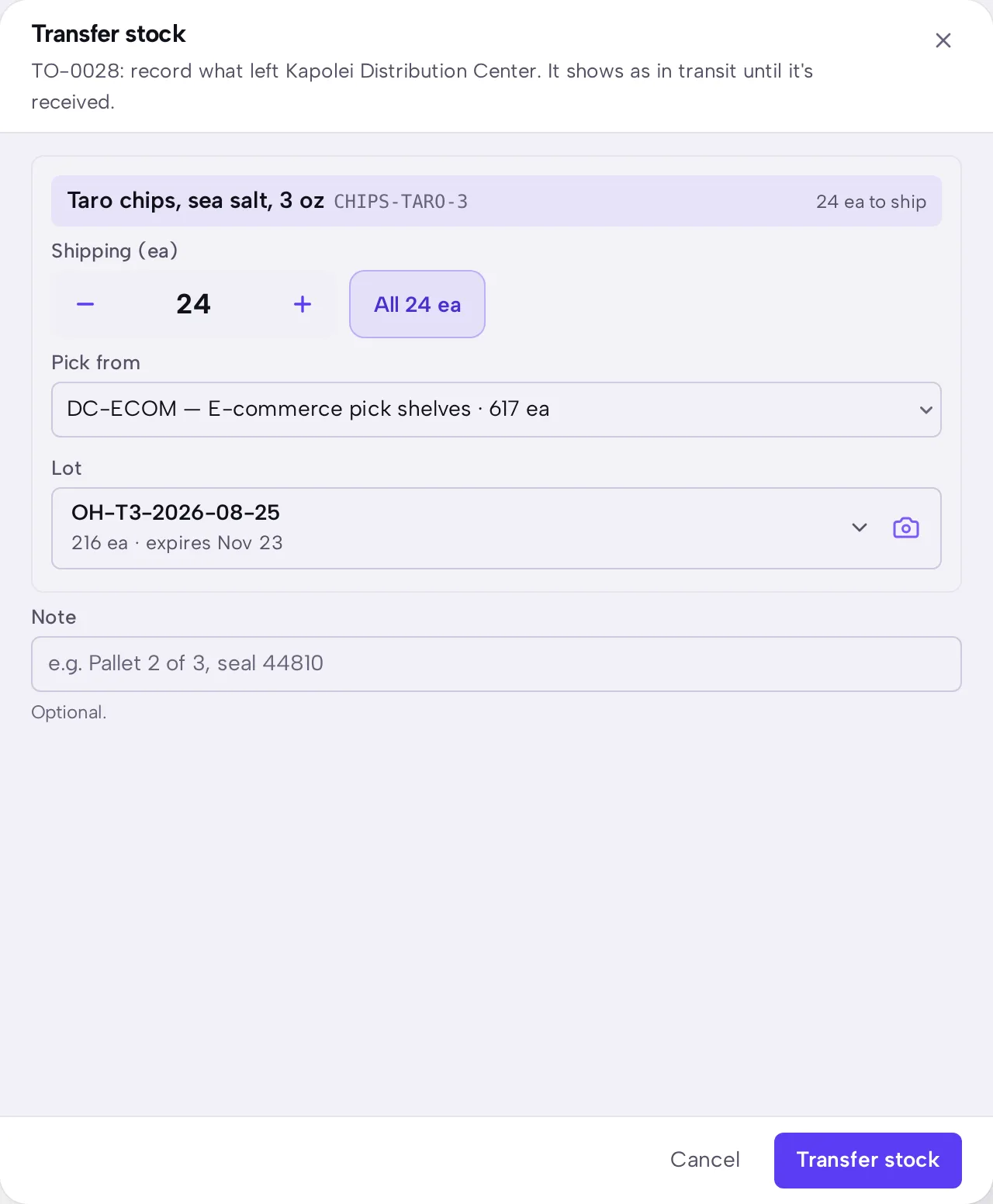
- When the stock leaves, open the transfer and press Transfer stock.
- Check Shipping and Pick from. Press All on a row if the whole amount is leaving, then press Transfer stock at the foot of the sheet.
- When the stock arrives, open the transfer and press Receive inventory.
- Enter what arrived, and choose Put away in and Condition.
- Press Receive.
What you should see
After you ship, the transfer says In transit, and the shipment lists its lot. After you receive, it says Received, and the stock is at the new site.
- Planned
- In transit
- Received
Good to know
Stock in transit belongs to neither shelf, and it's counted in your total.
If less arrives than left, receive what came and close the rest. The screen offers this when part of a shipment is missing, and the missing stock is recorded rather than forgotten.
Transfers don't need a second approval. Approval applies to purchase orders. Who may move stock is decided by role.
Press More on a transfer to print its transfer note.