

Stock and purchasing rules
Choose how TaroStack treats below-zero stock, expired stock, inspection and approvals.
What it does
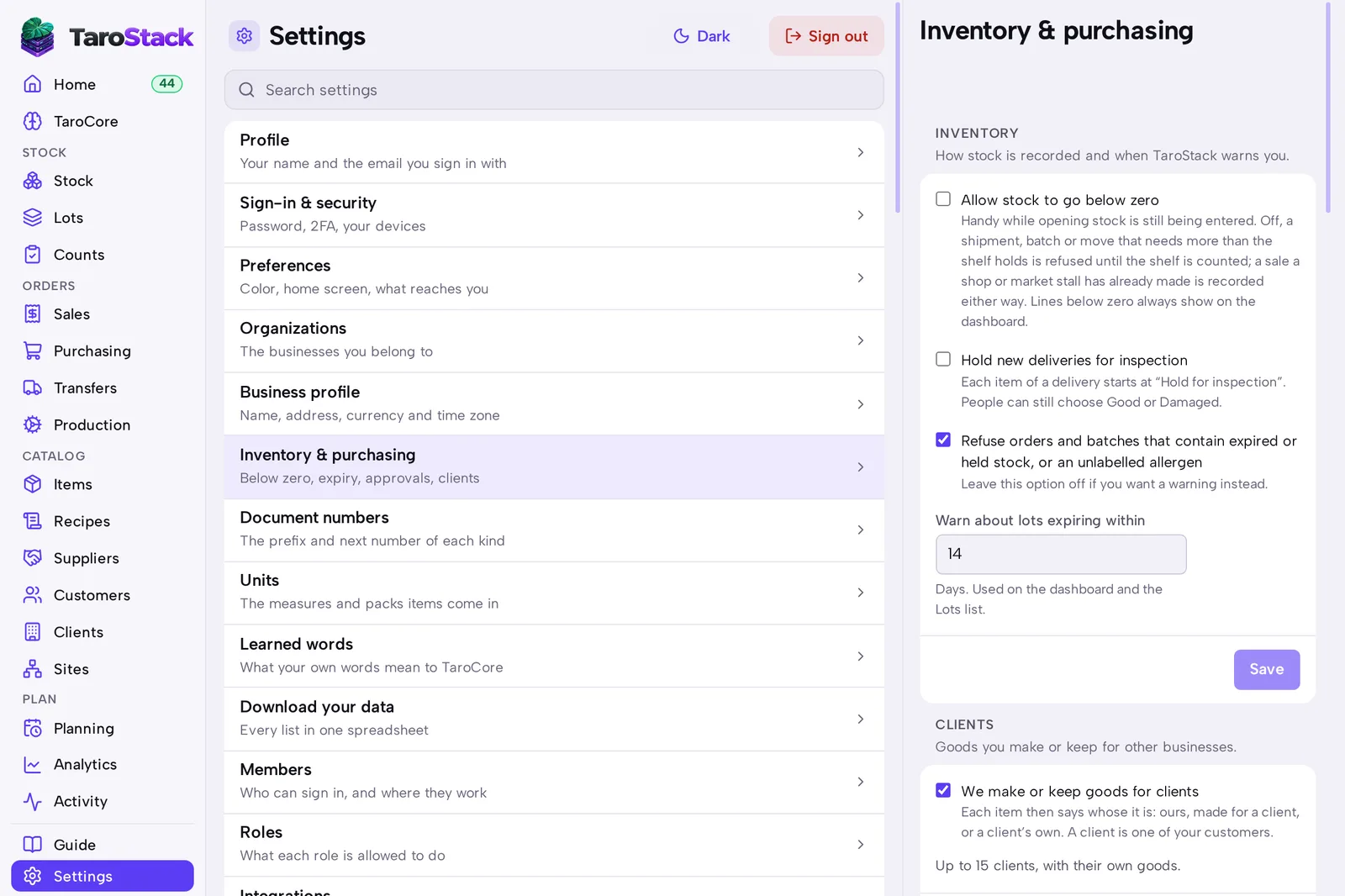
Settings › Inventory & purchasing holds the rules for your whole business: what may go below zero, what's refused, when lots warn you, and when an order needs approval.
When to use it
Read them in your first session, and when your process changes.
Before you start
You need permission to change business settings, which owners, admins and managers have.
Steps
- Open Settings, then Inventory & purchasing.
- Choose whether to Allow stock to go below zero.
- Choose whether to Hold new deliveries for inspection.
- Choose whether to refuse orders and batches that contain expired or held stock. With this off, you get a warning instead.
- Enter how many days Warn about lots expiring within should use.
- Enter Approval needed above for purchase orders.
- Press Save.
What you should see
The rules apply from the next action. A shipment that needs more than the shelf holds is refused if below-zero stock is off.
Good to know
A sale that a store or market stall has already made is recorded either way, because it has already happened. The shelf then shows below zero, and Home lists it.