

Stock counts
Count a whole site or just a few items, review the differences, then post them.
What it does
A count compares what's really on the shelves with what TaroStack expects. Posting it sets each counted shelf to what was counted and records the difference.
When to use it
Count a whole site at the end of a period, or a few valuable items each week. Use a blind count when you want counters to report what's there without seeing the expected figure.
Before you start
The site has stock. A person needs a role that counts, such as Warehouse. See Roles and permissions.
Steps
- Open Counts, then press Start a count.
- Choose the Site.
- Choose Every item at this site or Only some items. For a few items, press Suggest what to count to add the most valuable stock that has moved most.
- Tick Blind count if counters shouldn't see the expected figure.
- Press Start counting.
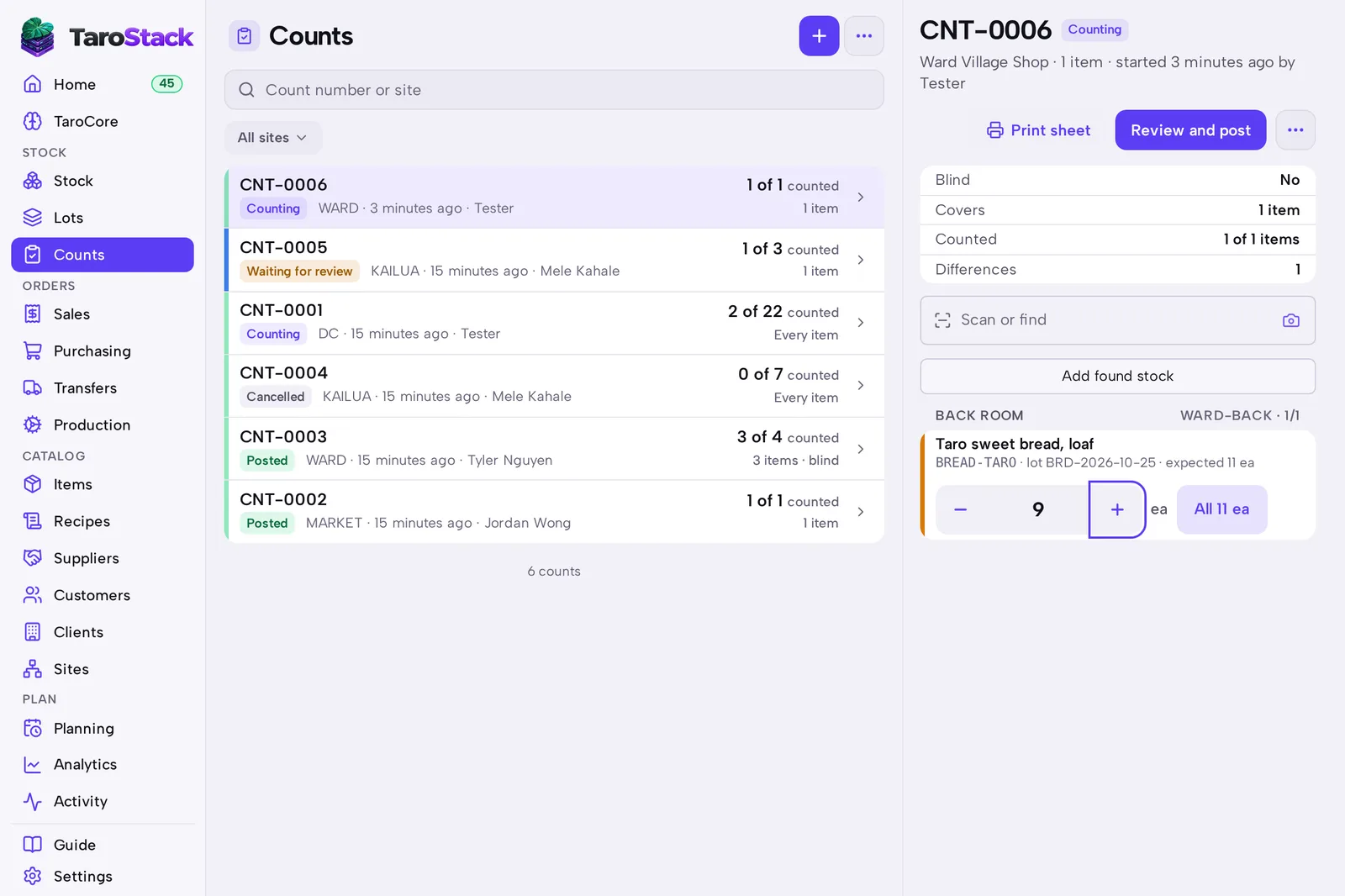
- Enter what you count on each row, or press All on a row when the expected amount is there.
- Press Add found stock for anything that's on the shelf but not on the list.
- Press Review and post.
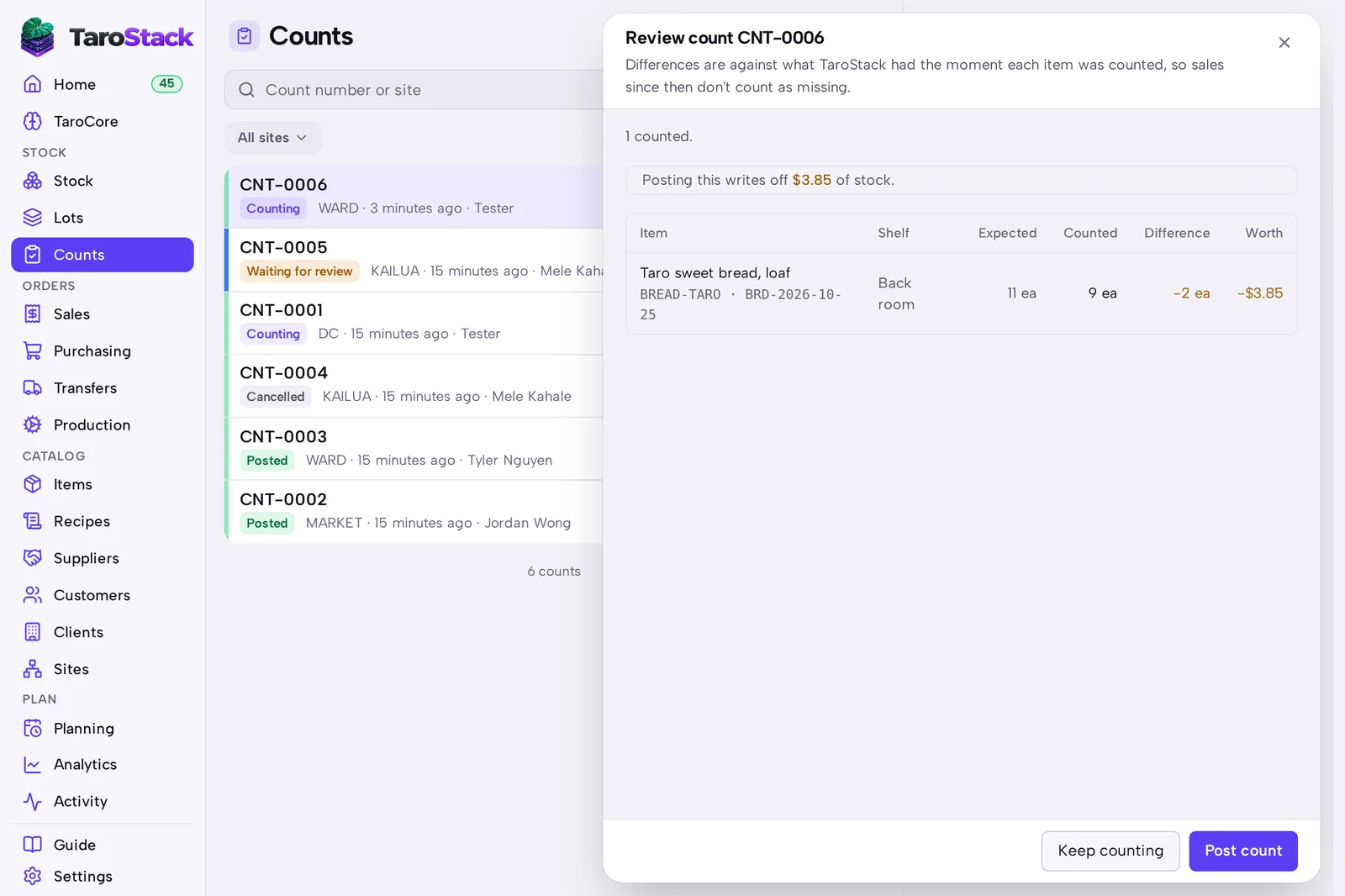
- Check the differences and their worth, then press Post count. Press Keep counting to go back.
What you should see
Review lists each row with Expected, Counted, Difference and Worth, and it says what posting will write off. After you post, the count shows Posted, and Stock shows the counted amounts.
Good to know
Differences are measured against what TaroStack had the moment each item was counted, so sales made since then don't count as missing.
You can print a sheet with Print sheet, or count without a connection. See Phones and working offline.