

Matching products and locations
Decide what each variant and location is in TaroStack, or leave it out of the sync.
What it does
Matching links each Shopify variant to a TaroStack item, and each Shopify location to a TaroStack site. A variant's stock and sales then count toward its item.
When to use it
Use matching when a variant is listed under No SKU in Shopify, or when the import chose a site you'd rather change. Use it too when someone else runs a location and that location should stay out of the sync.
Before you start
The first import has finished. You need permission to connect stores, which owners and admins have.
Steps
- Open Settings, then Integrations, and open your store.
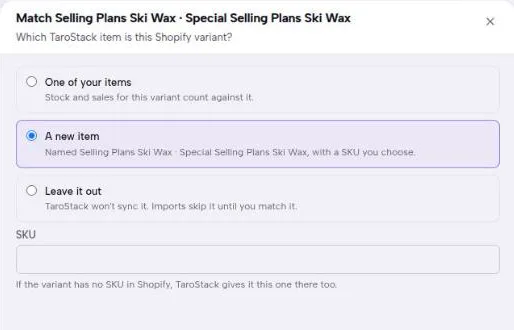
- Find the variant in Products and press Match.
- Choose One of your items, A new item or Leave it out.
- For a new item, enter its SKU.
- Press Save.
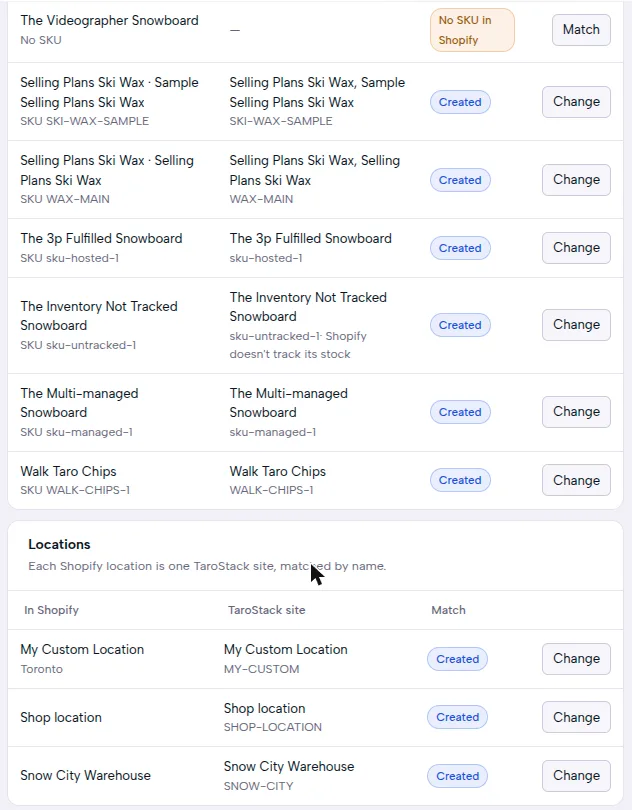
- To correct a match you've already made, press Change on its row.
- Under Locations, press Change to match a location to another site.
What you should see
The row's badge changes to Created for a new item, or Chosen for one of your items, and the item is listed beside the variant with its SKU. If the variant had no SKU in Shopify, TaroStack also sets the SKU you entered on the variant in Shopify.
Good to know
Leave it out is a valid choice. TaroStack won't sync that variant, and later imports skip the variant until you match it.
Each variant is one item, and each location is one site. A location you don't match isn't synced, which suits a third-party warehouse you don't run.
A variant with tracking turned off in Shopify shows Shopify doesn't track its stock, so Shopify has no count for TaroStack to change.