
The first import
TaroStack turns each location into a site, each variant into an item, and each count into stock.
What it does
The first import brings your Shopify locations, products and stock counts into TaroStack. Each location becomes a site, each variant with a SKU becomes an item, and each count becomes stock at that site.
When to use it
The first import runs by itself at install. Run it again after you've added locations or products that haven't arrived, or after a large change in Shopify.
Before you start
Install TaroStack on the store.
Steps
- Open Settings, then Integrations, and open your store.
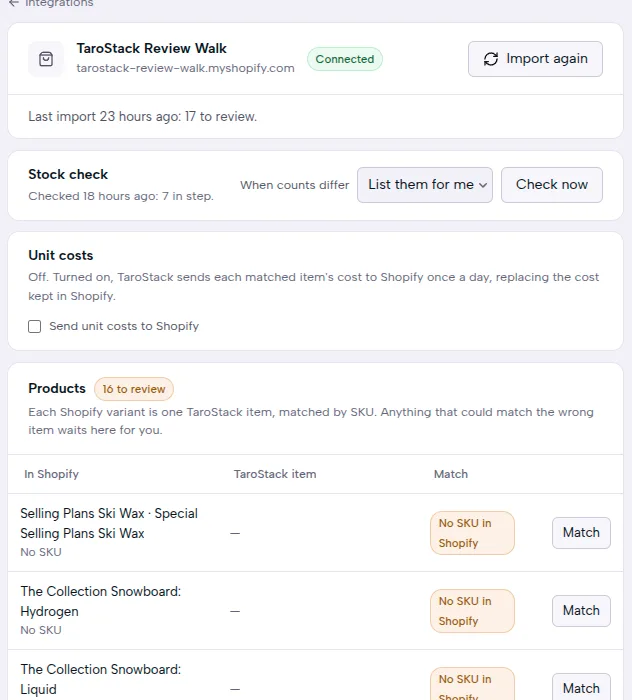
- Read the line under the store's name. It says when the last import ran and how many products wait for you.
- Press Import again if you want a new import. The page shows its progress and then its result.
What you should see
The store shows Connected. Products lists every variant with its match, and Locations lists every location with its site. Your items are in Items, and your counts are in Stock.
Good to know
An imported item starts as a finished good you buy and sell. It has no lots, no supplier and no reorder point until you add them.
Variants with no SKU don't become items by themselves. A guessed match would sell the wrong thing, so these wait for you. See Matching products and locations.
Differences between the two counts are handled in Stock differences.