

Installing TaroStack on Shopify
Install the app from Shopify, and TaroStack brings in your locations, products and stock.
What it does
Installing TaroStack adds the app to your Shopify admin and starts a business for your store. TaroStack opens inside Shopify, and Shopify signs you in.
When to use it
You're ready to try TaroStack on a store. If you'd like to test without touching a live store, use a development store first.
Before you start
You need permission to install apps on the store. The store's currency becomes TaroStack's currency, so check the currency in Shopify first.
Steps
- Open TaroStack in the Shopify App Store and press Install.
- Review the permissions on Shopify's page and approve them.
- Wait on the first screen while TaroStack imports your store. The import takes about a minute.
- Choose a page from TaroStack in Shopify's sidebar.
What you should see
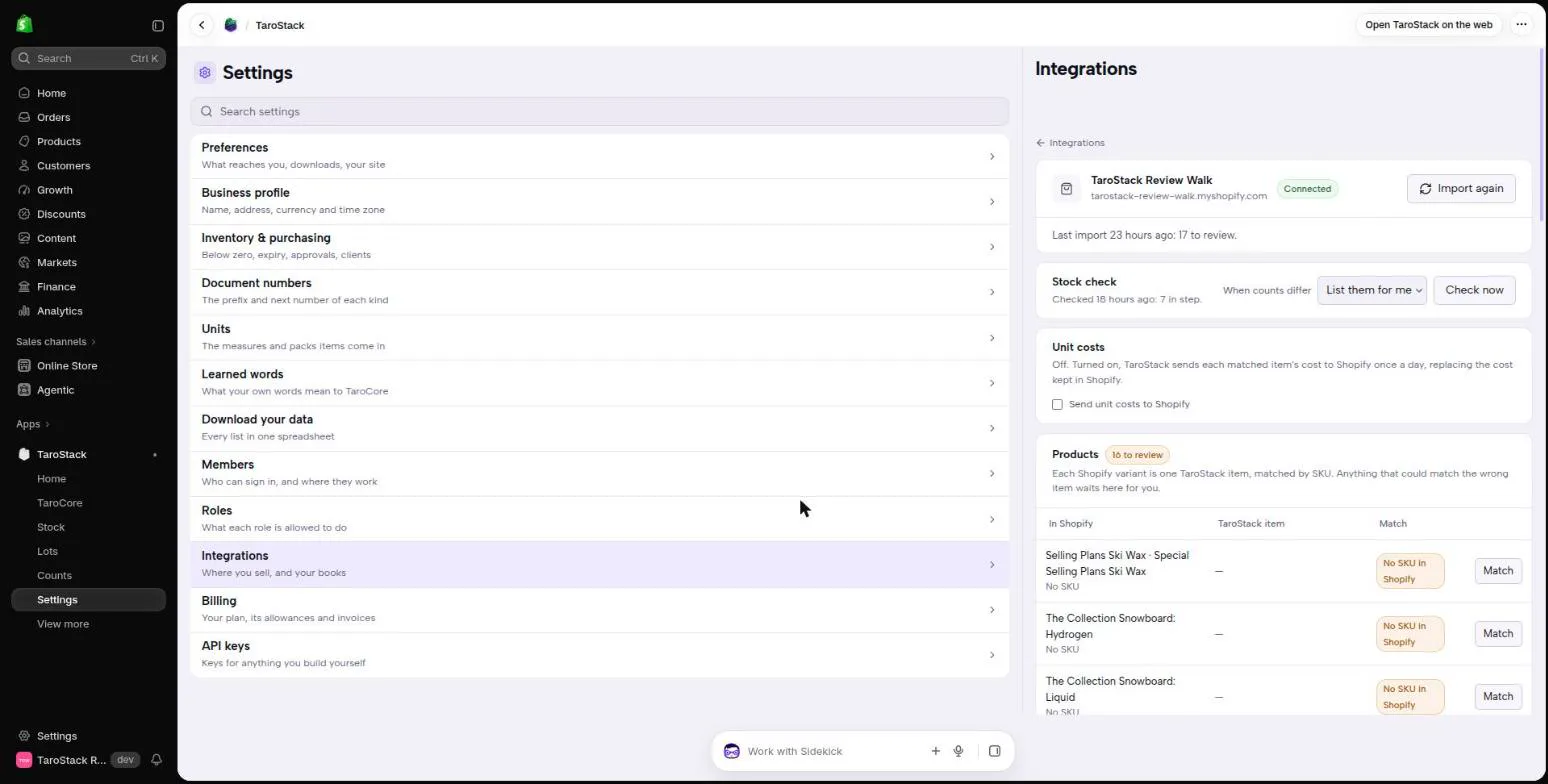
TaroStack appears in Shopify's sidebar, with Home, TaroCore, Stock, Lots and Counts listed, and more under View more. There's no second sign-in.
Good to know
A 14-day trial starts at install, and a development store is never charged.
If your Shopify email is already the login of a TaroStack business you own, in the store's currency, TaroStack asks which business to use. If you choose your existing business, that business becomes the store's, and everything in it stays. If you choose a new business, your existing business stays as it is.
One TaroStack business connects to one store. Two stores need two businesses.