

Sales orders
Take an order, see whether it can ship, and see what it's waiting on.
What it does
A sales order records what a customer wants and when. It promises the stock, and it tells you whether the order can ship or what it's waiting on.
When to use it
Use it for wholesale orders and for anything you ship later. Sold here records a sale that has already happened at a site, such as a market stall.
Before you start
The items are marked for selling. See Adding your items.
Steps
- Open Sales, then press Create sales order.
- Choose New order, or Sold here for a sale that has already happened.
- Choose the Customer, if there is one.
- Choose Ships from and Needed by. If the customer has delivery days, TaroStack offers their next one.
- Choose each item, then enter its quantity and price.
- Press Place order.
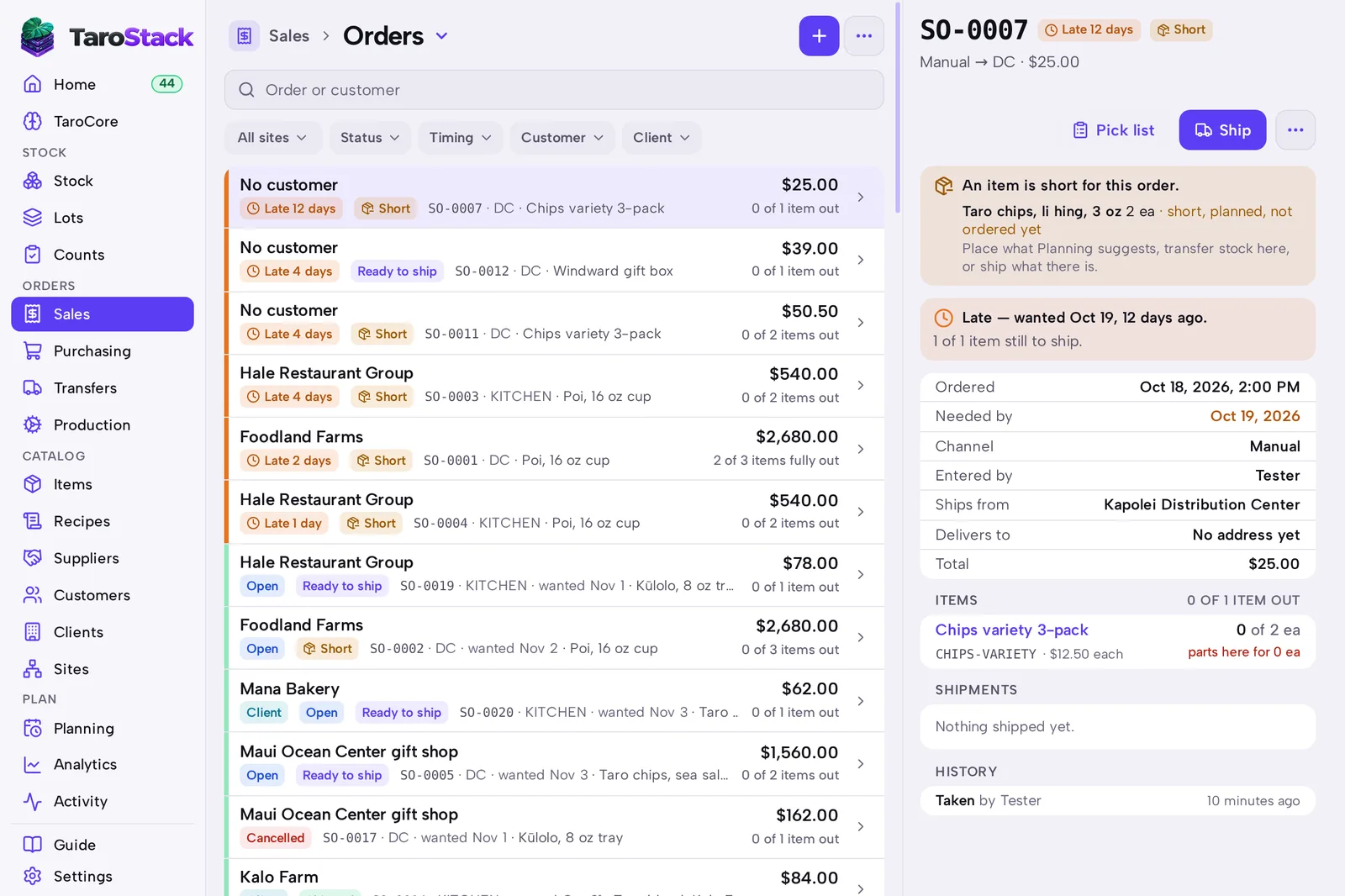
What you should see
The order opens with its status. Ready to ship means the stock is there. Short means it isn't, and the order's page says which items are short and which other sites have them.
Good to know
A short order offers a next step, such as a transfer from another site, or shipping the order from that site instead.
A shipped order stays Shipped. A tag beside it says Refunded, Partly refunded or Return recorded if something came back.
Order again on a shipped order starts a new one with the same lines.