

Receiving deliveries
Record what arrived, where it went, and its lot and condition.
What it does
Receive inventory records a delivery against its purchase order. It adds stock, creates a lot for tracked items, and sets each unit's cost from what you paid.
When to use it
Use it when a delivery arrives, including one that's only part of the order.
Before you start
The purchase order exists. Receive Inventory on Home can also start from a delivery with no order.
Steps
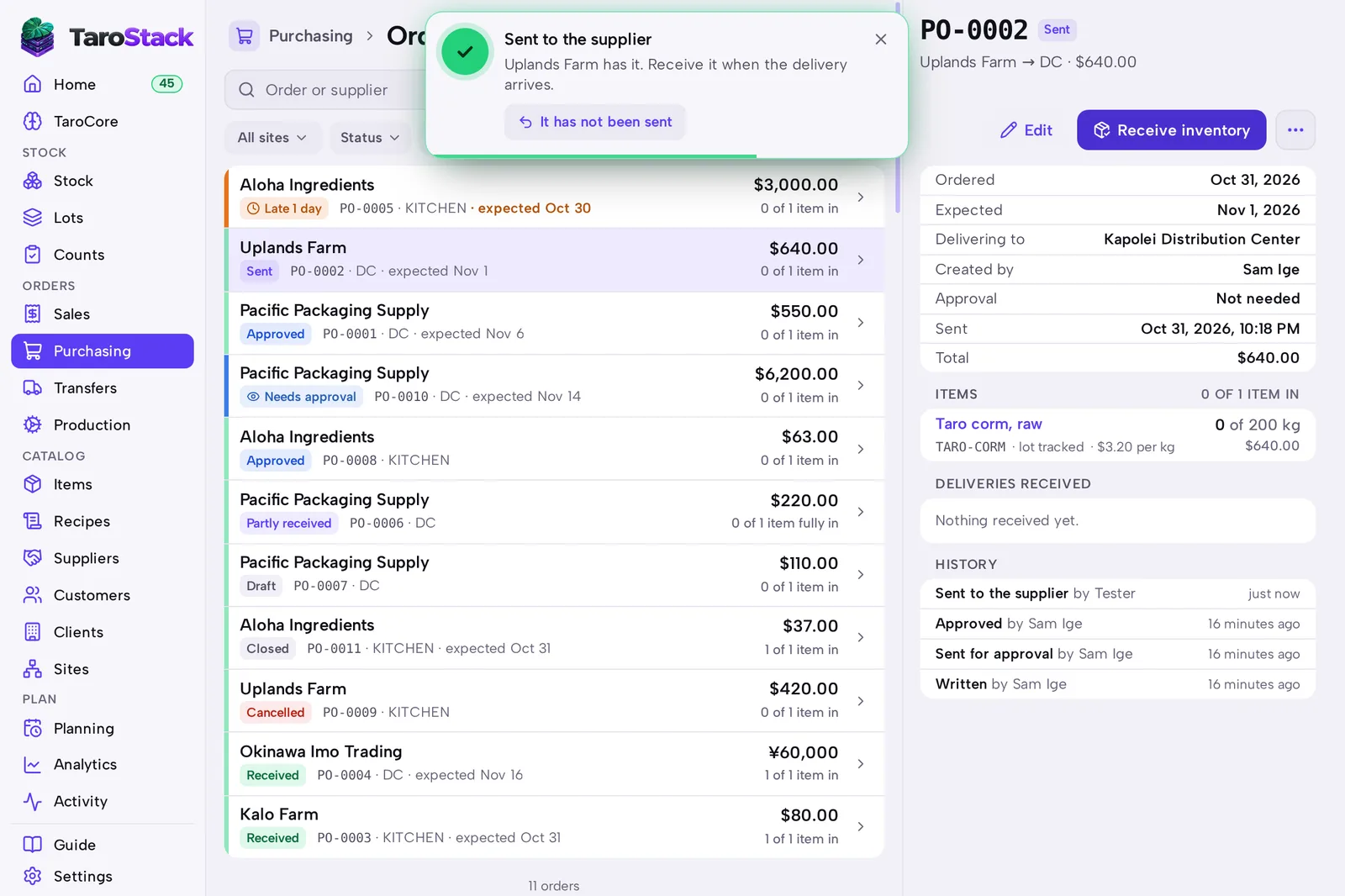
- Open Purchasing and open the order.
- Press Receive inventory.
- Enter what arrived on each row, or press All if everything came.
- Choose Put away in and the Condition: Good, Hold for inspection or Damaged.
- Enter the lot code and expiry date for tracked items.
- Press Receive.
What you should see
The delivery is listed under DELIVERIES RECEIVED, and the order shows how much is in. Stock shows the new amount, and Lots shows any new lot.
Good to know
If the rest will never come, press More and choose Close short. The order stops counting as coming.
Hold new deliveries for inspection on Settings › Inventory & purchasing starts each item at Hold for inspection.
Stock received at a matched site raises Shopify's count within a minute.