

Purchase orders
Order from a suggestion or a blank order, approve it if needed, and send it.
What it does
A purchase order records what you've asked a supplier for. TaroStack suggests orders from what's low and what orders need, and it can hold a large order for approval.
When to use it
Use it each time you buy stock. It lets TaroStack count what's coming, so nobody orders the same thing twice.
Before you start
The supplier sells at least one item you need.
Steps
- Open Purchasing, then press Create purchase order.
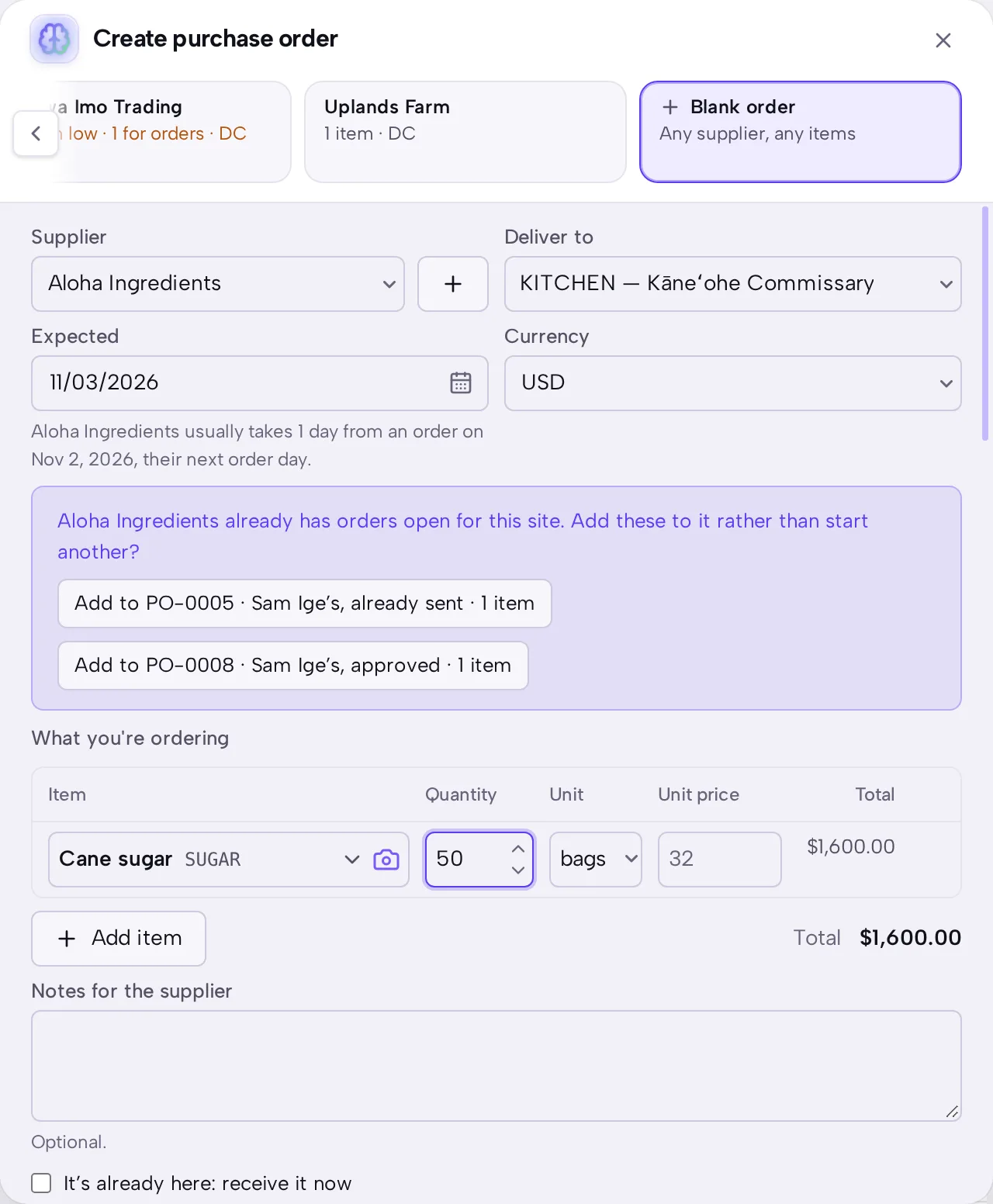
- Press a suggested supplier to start from what's low, or press Blank order.
- Choose Supplier and Deliver to, and check Expected.
- Add or change each item, quantity and price.
- Save the order.
- If it's over your approval limit, somebody with permission opens it and approves it.
- When you've sent it to the supplier, open it and press Mark as sent to supplier.
What you should see
The order appears in Purchasing with its status and expected date. Its items count as coming on each item's page, and Home warns you if it's late.
Good to know
If the supplier already has an open order for the site, the sheet offers to add to that one instead.
Approval needed above on Settings › Inventory & purchasing sets the limit. An order over it says Needs approval, and it can't be sent until somebody approves it.