

Lots and expiry dates
Follow each batch or delivery by its lot, and pick the earliest date first.
What it does
A lot is one delivery or one batch of an item, with its own code and expiry date. TaroStack keeps each lot's stock apart, and it picks the earliest date first.
When to use it
Turn on lots for anything perishable, and for anything a customer or inspector might ask about. An item you don't need to trace doesn't need lots.
Before you start
The item exists. A new item you make can be given lots when it's created.
Steps
- Open Items and open the item.
- Press More, choose Track this by lot, then press Track by lot. Stock already on hand goes into an opening lot.
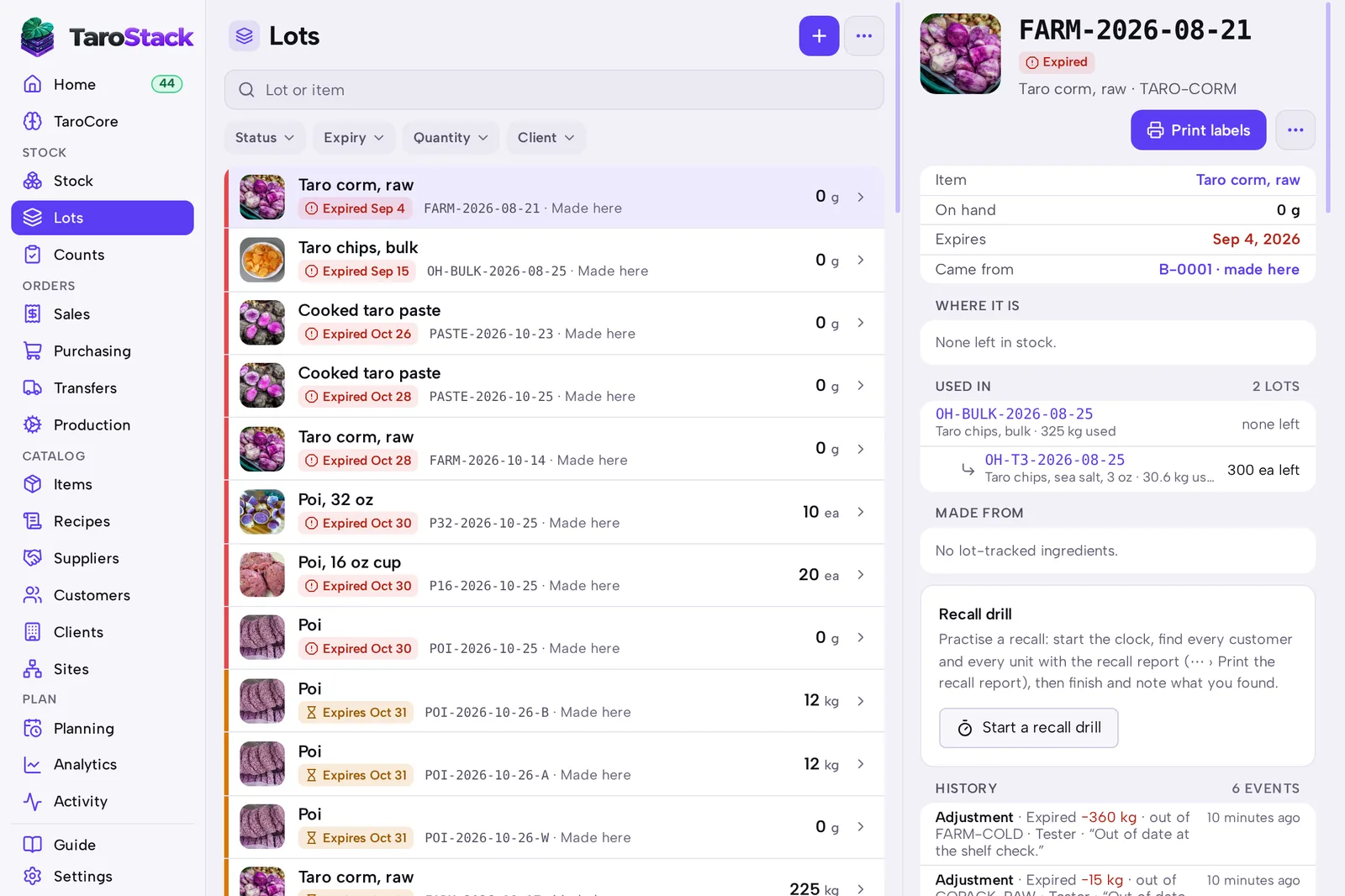
- Open Lots to see every lot, with the earliest dates first among those that matter.
- Open a lot to see where it is, what made it and what it went into.
- To stop a lot being sold or used, press Put on hold, say why, and press Put on hold again.
What you should see
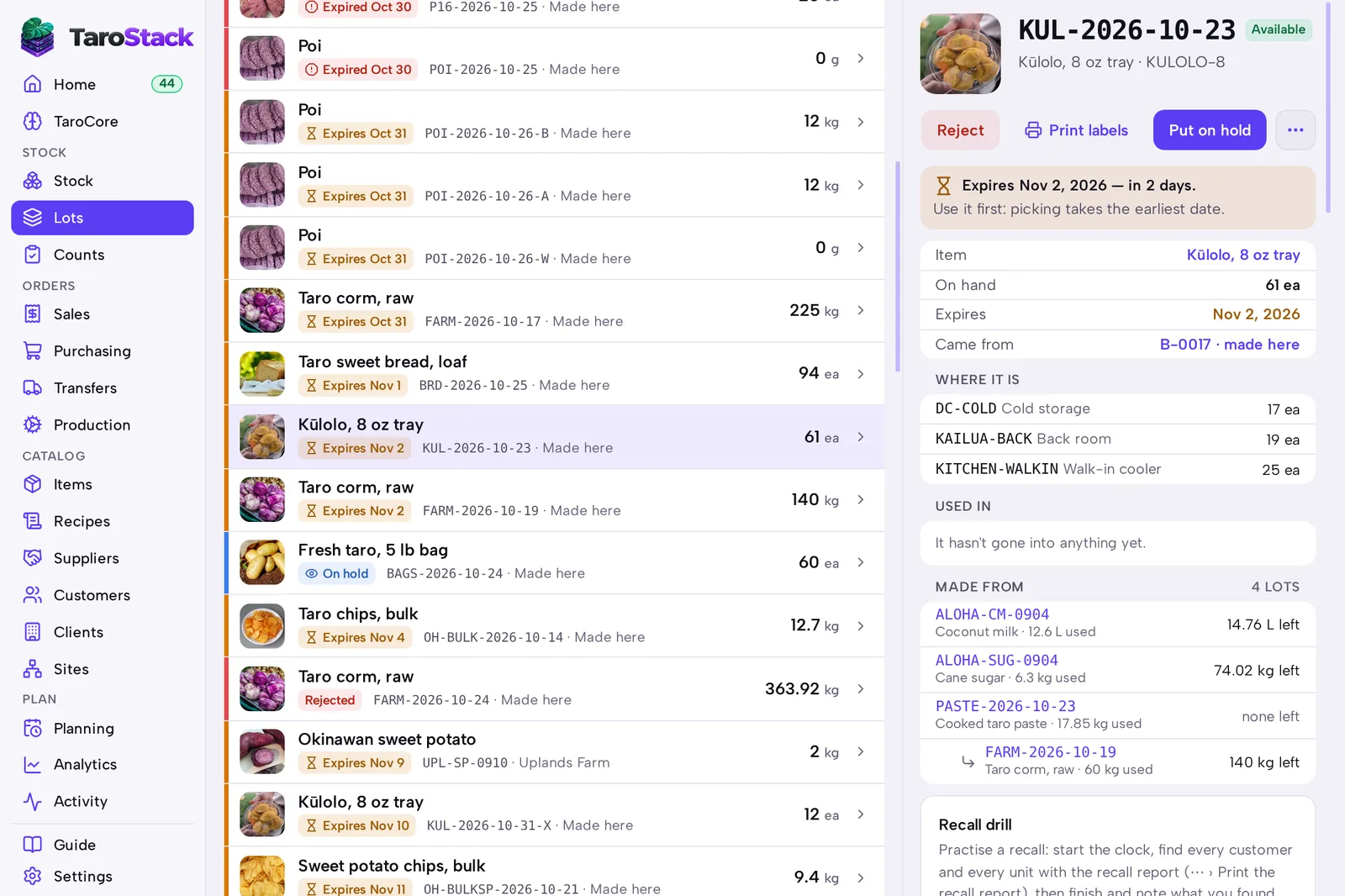
A lot's page shows its status, its expiry date, WHERE IT IS, USED IN and MADE FROM. A lot on hold says On hold, and its stock isn't free for orders or batches.
Good to know
Picking takes the lot with the earliest date first, and the screen says so on a lot that's close.
Statuses are Available, On hold and Rejected. A delivery can also start at Hold for inspection if you've turned that rule on.
Warn about lots expiring within on Settings › Inventory & purchasing sets how soon a lot appears on Home and in Lots.