

Picking and shipping
Print or follow a pick list, then ship what you pack.
What it does
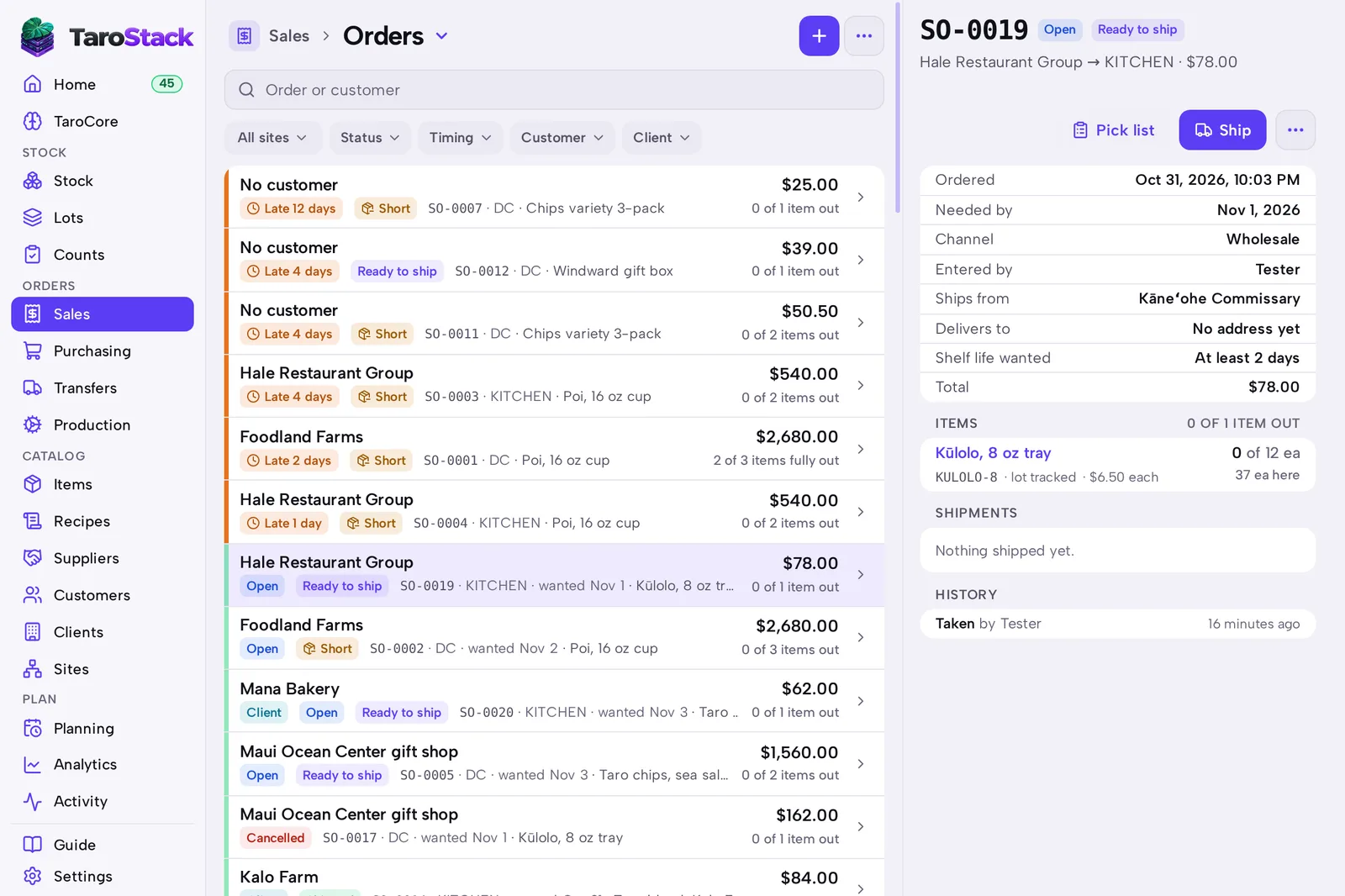
Pick list shows what to take and from which shelf, with the earliest lot first. Ship records what left, takes it off the shelf and promises it no longer.
When to use it
Use it each time an order is ready. Use Ship Sales Order on Home when you have several to ship.
Before you start
The order is Ready to ship, or you're choosing to send part of it.
Steps
- Open Sales and open the order.
- Press Pick list and collect the items.
- Press Ship.
- Check the quantity, shelf and lot on each row.
- Press Ship at the foot of the sheet.
What you should see
The order says Shipped, or Partly shipped if some remains. The shipment is listed on the order with Record a return beside it.
Good to know
The lot you ship is recorded, and that's what makes a recall possible.
Print on a shipped order gives you a delivery note. Email sends it to the customer.
Shipping a store's order here fulfills it in Shopify. See Fulfilling from TaroStack.