

Running a batch
Plan, approve and start a batch, then finish it to add what you made.
What it does
A production order takes a batch from plan to finish. Finishing it takes the ingredients off the shelf, adds what you made, and makes a lot if the item is tracked by lot.
When to use it
Use it each time you make something. Choose how far to go at once, depending on who plans and who makes.
Before you start
The item has an active recipe, and the ingredients are at the site. For a lot, the item must be tracked by lot.
Steps
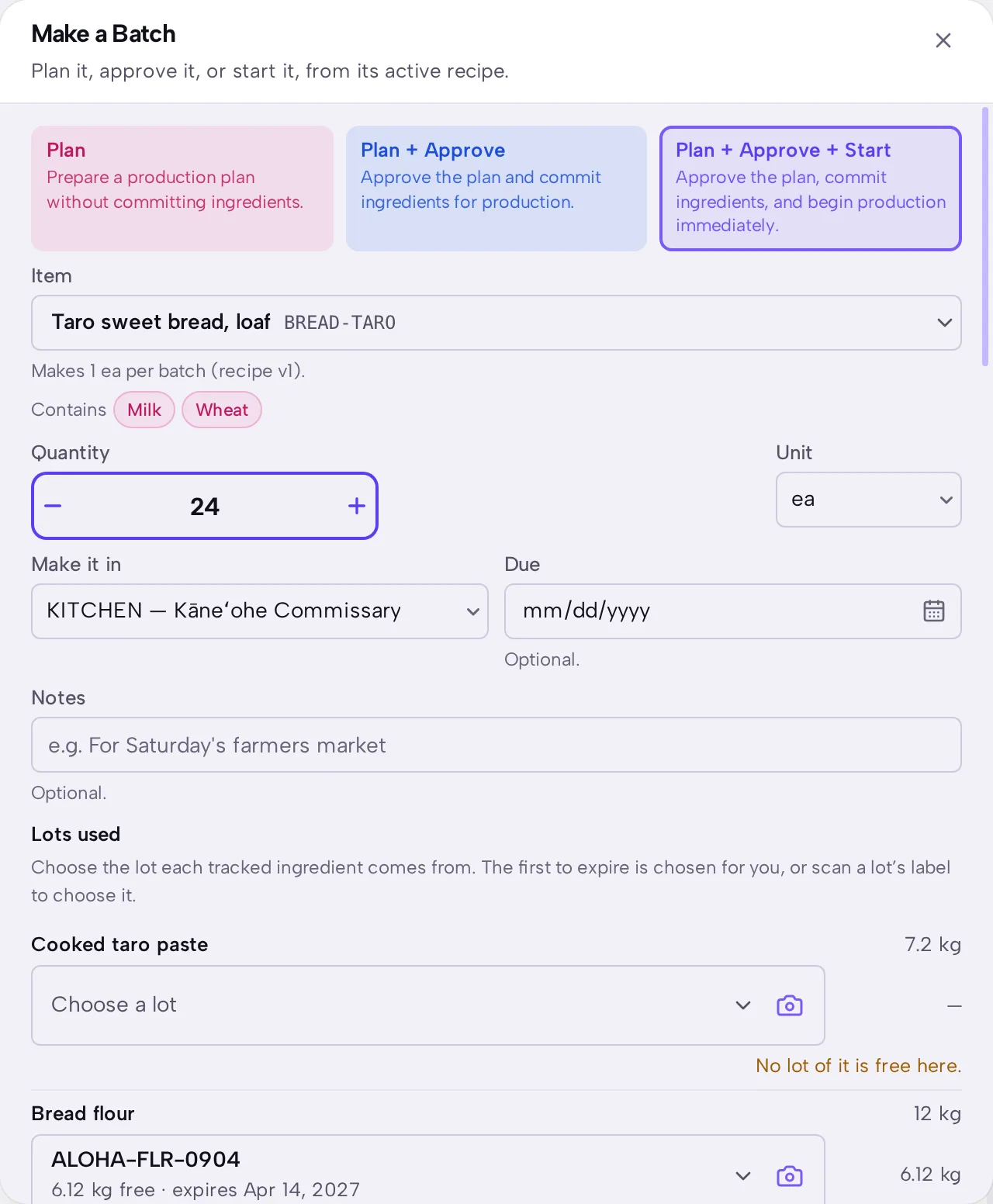
- Open Production, then press Make a Batch.
- Choose Plan, Plan + Approve or Plan + Approve + Start.
- Choose the Item, the Quantity and Make it in.
- Check Lots used. The first lot to expire is chosen for you.
- Press the button at the foot of the sheet. It repeats the choice you made.
- When the work is done, open the order and press Finish.
- Check Made, Thrown away, Put it in and What it used.
- Press Finish at the foot of the sheet.
What you should see
The order says Finished. The ingredients are lower, the item is higher, and a batch is listed with what it cost. If the item is tracked by lot, Lots shows a new lot named after the batch.
- Planned
- Approved
- Started
- Finished
Good to know
Plan doesn't commit ingredients. Plan + Approve does, so other orders can't promise them.
A started batch can go Back to planned until something has been recorded.
Finishing a batch of a matched product raises Shopify's count within a minute.